Tuesday, December 2, 2025

How to Use PSP Scripts


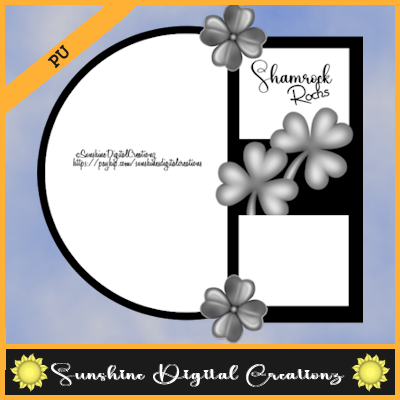
Sample Design for PSP Script

and there more at the store view the link below 

they are for PU or CU use only xx 


PSP Scripts HERE


1. Open Template 1 go to Windows>Duplicate close the original out 

2. Open next template go to Edit>Copy then go to template 1 it becomes your transparent image go to Edit>Paste into new raster layer with your move tool move as it shown in the psp script sample page or it should fall right into place for you 

3. Open next template do step 2 again do this with all the templates

All PSP Scripts comes with a # number of Elements you can use for PU Or CU use to add into your kits

Some of the PSP Scripts will come with bonus templates and/or bonus Paper tiles that you can go into your pattern materials to use them

All PNG Templates are design to open in any psp program

No copyright is required on any of the PSP Scripts they are design for making scrap kits, greeting cards, business cards, etc designs for personal or commercial use

I hope you enjoy the psp scripts look for more to come soon there is also element color in each folder for you too that you can use for making graphic tags, greeting cards, business cards etc designs too in each folder for you

Thanks for stopping by this completes how to build PSP Script into layers thanks for stopping by may you have a good day look new designs to come soon 


For coloring PSP Scripts or Template Elements you can view the Overlay Tut HERE it works the same for papers, templates and psp scripts 


PSP Scripts HERE or under Theme Designs 

Overlay and Templates HERE or under Theme Designs 

Or simply go to my store HERE for all designs 


Hugs Sunshine


How to use Tag Templates Tutorial


 Sample Design

More Tag Templates come time for time for PU if they are

CU or CU4CU you will buy them xx 


Tag Templates HERE


1. Open the Tag Template you download for free or collect from my tutorials

2. Go into the PNG Templates open the Blank Template this becomes your transparent image 

3. Open Template 1 go to Edit>Copy then go over to your transparent image go to Edit>Paste into new raster layer (it should fall into place) 

4. Open the rest of the templates 2 thru how many templates there is to each tag template go to Edit>Copy then go to Edit>Paste into new raster layer of your transparent image that you are building the layers of the tag template 


I use my tag templates with my tutorials that I will share with you here on the blog and you can also link below 


Tutorials HERE
Timeline HERE

Tags Sets HERE

Blog Train HERE

Thanks for stopping by look for tutorials to be coming soon


Hugs Sunshine


How to Build Color Chart

How to Build Color Chart


1. Right click both templates go into your psp program 
 
  A. Go the Multiple Color Chart go to Window>Duplicate close the original out this will be come your transparent image 

 B. Open Color Chart template go to Edit>Copy go over to the multiple color chart template go to Edit>Paste into new raster layer with your move tool place it on top of the black square template it will line up 

 Hint if you need go to Image>Negative turn it white might help see it as you build layers with the multiple color chart template 

 C. Continue step B by adding the single template by going to Edit>Copy then go to Edit>Paste into new raster layer each layer you will build the template into multiple color chart 

Once you have the layers or how many colors theme you want go to the next step

2. Use the cross mouse click on the 1st box you want to use with the solid color of your theme click on the single color chart then go to Selections>Select all>Float then go to Layers>Add new raster layer click on the paint can and paint the color you use into the new raster layer then go to Selections>Select None then go to Layers>Merge Down then the single color chart template comes into the color theme you use 

3. Do step 2 with all of the theme color chart that you want 

4. Once down go to Layers>Merge>Merge Visible have your row of the theme color chart as I provide in my designs for my kits, psp scripts, cu templates, frame clusters and/or paper designs 

5. Add Inner Bevel like I do I use the following setting below 
 
 # 2 Bevel 
Width 30
Image Smoothness 7
Depth 3
Color is White 
Angle 315
Intensity 50
Elevation 30

Everything else is 0 click okay this gives it more then once shade as you color the psp scripts, cu templates, frame clusters, or to use for making scrap kits designs 

6. Once ready to save it go to File as as PNG format this completes this tutorial here is an design of my standard color chart provide for you to view with multiple of colors add to the theme I choose as my standard color chart 


Sample of Color Chart Theme 


Thanks for stopping by I use the color chart with my designs to nice to have a color chart to have the colors I want to use unless I use paper decorations designs I create but this gets you going 
 
Hugs Sunshine 

How to Use Overlay Papers


How to Use Overlay Papers, Elements, PSP Scripts etc 


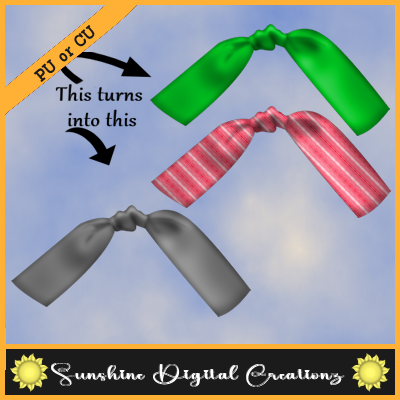
All Overlay designs have PNG template that are in gray or PSP Image that in gray then you can color them or use the color designs for PU or CU must buy to use CU items if you download for freebie, it is PU use only no CU is allowed. 


For the tutorial I will show you here how to take this gray overlay paper into color design 


1. This overlay is in my Glitter Papers HERE 


2. Go to Windows>Duplicate close the original paper

3. Go to Layers>Add New Raster Layer 

4. Choose the color you want for this tutorial I use this color #b92d5d you can use whatever color you want to add 

5. Now go to Blend change it to Overlay 

6. Go to Layers>Merge All (Flatten it) turns into this design below 


7. Save it in JPG or PNG format this tutorial is design in 300 x 300 put your papers at 800 x 800 or 1000 x 1000 whatever size you want it this tutorial is to show you how to take an overlay paper and turn into into paper design 


This tutorial is design for the paper turn but also work same for all Overlay Template Elements, PSP Scripts, etc designs that are gray template or script turn into color just do the same tutorial as you do for the paper to the template or psp scripts of elements... 


Papers HERE
PSP Scripts HERE
Templates and Overlay HERE


All store designs HERE 


May you enjoy my designs and my tutorials and thanks for stopping by may you have a good day and thank you for purchasing my designs look for more to come soon 

Hugs Sunshine 

written Dec 2nd, 2025